Welcome to the Raindrop Documentation
Additional Resources
Need help or have an idea for improving Raindrop? Ask for help or 🚨report a bug🐛🚨 in our forum.
Join our public discord office, interact with staff during office hours with chat📝, voice🗣️, and screen sharing🖥️. Join Raindrop Discord
Didn’t find what you’re looking for in all of our documentation or forums articles? 📨 Contact our support team 📨.
Getting Started
Raindrop is not a standalone program, it is a plugin requiring AutoCAD.
Download and run the installer. The installer will copy the program to your folder, and set your CAD program to load Raindrop at startup.
Irrigation Properties Palette
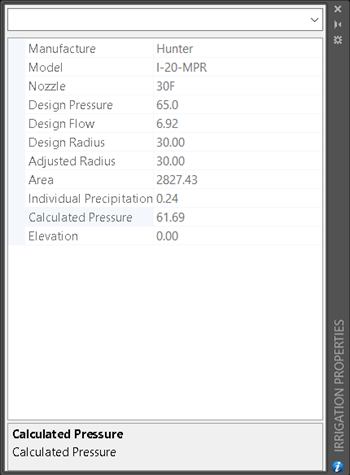 The *Irrigation Properties* window shows additional irrigation related properties of objects in the drawing. To show the irrigation properties window, click the information button on the irrigation tool.
Project Settings
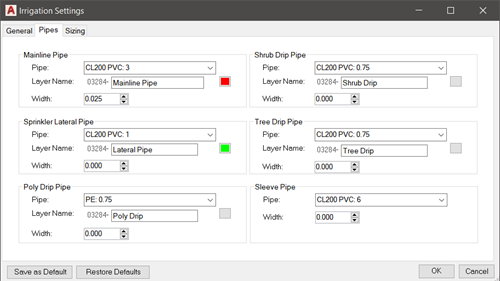 Use the *Project Settings* dialog to change project settings such as drawing scale, pipe types, and layers. To access the settings dialog, click the gear button on the tools palette.
Irrigation legend
Run IR_Legend or choose the irrigation legend tool. In Settings > App > Irrigation legend, choose Symbols and text or CAD table. For tables, select Symbol, Description and Quantity columns; keep at least one enabled. Table symbols retain their inserted drawing scale and align with the table. Rotate labels to view controls rotation of the table and its symbols together.
Set separate Body text size and Header text size in plotted inches or millimeters, choose a Text style, and optionally enable All caps. The style chooser displays the actual default style name and identifies the fallback if your saved style is missing from another drawing. Changes save automatically as app defaults across drawings and apply to newly placed legends. Equipment descriptions and existing legends remain unchanged.